

Google My Business allows you to:
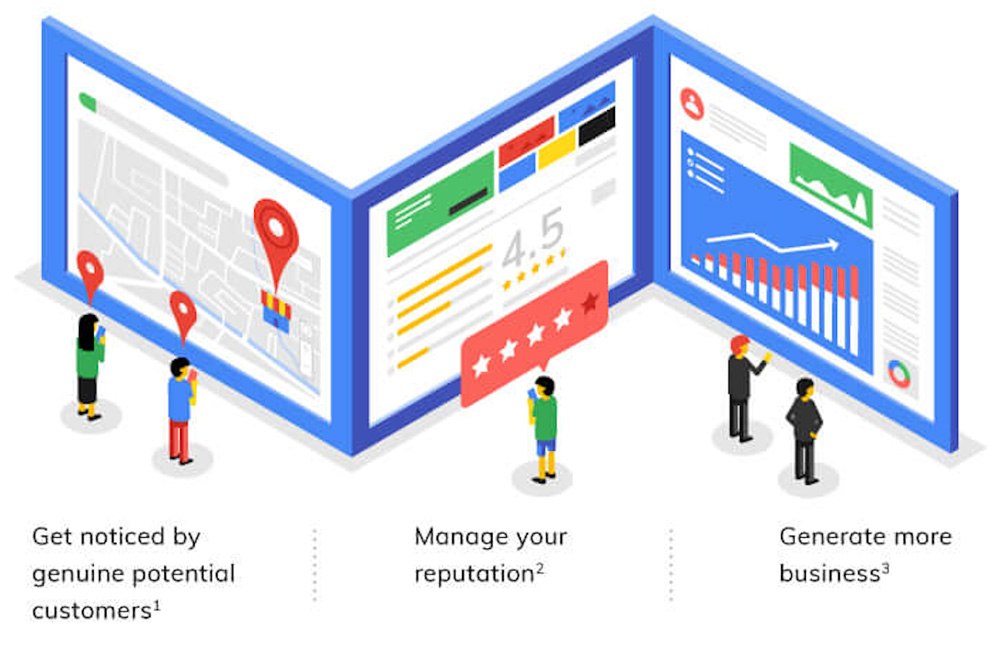
Small businesses use Google My Business because:
4 out of 5 customers use search engines to find local information.

70% of customers visit a shop/store and make a purchase after carrying out an online search.
85% of people trust Google Reviews as much as personal recommendations.
Just some of the reasons why you should be using Google My Business. Next, you can learn how to get started setting up your GMB profile.
How to create your Google My Business listing:
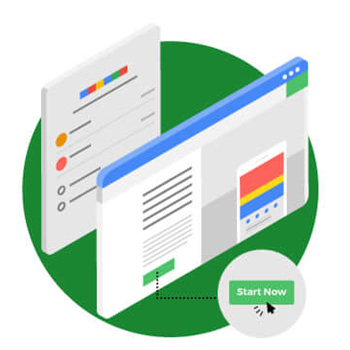
1. Log in to your Google account, then go to google.com/business and click ‘Start Now’.
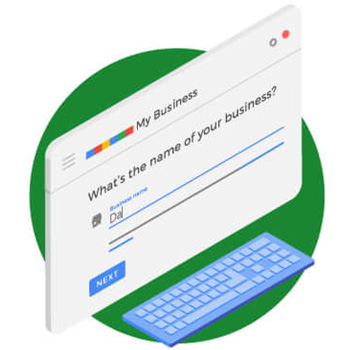
2. Start typing the name of your business and if Google already has a listing for your business, click the name.
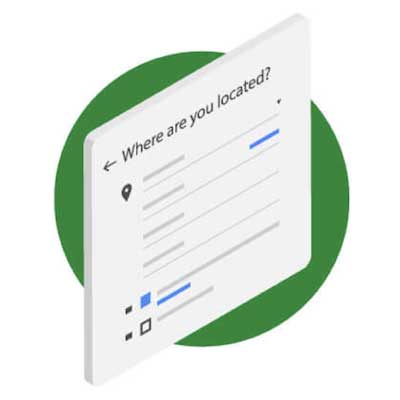
3. If Google doesn’t have a listing for your business already, fill in the details including your full address and/or delivery area.
PRO TIP: If you run an online store from your home, you might not want to have your address visible.
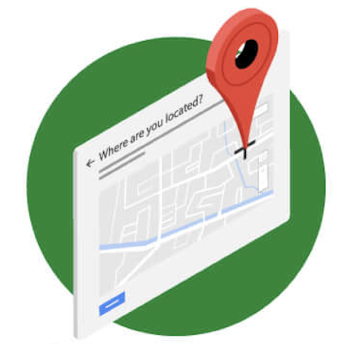
4. On the next screen, move the pin to your exact location, if you want customers to find your business.
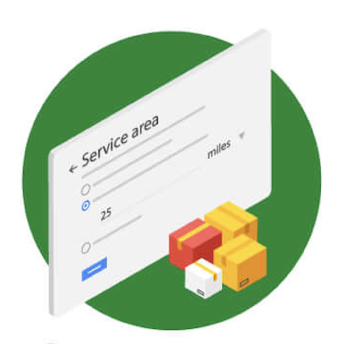
5. If you offer deliveries, you can determine your delivery method and service area.
6. Select the category your business falls under by typing it in and picking the best fit.
7. Pick how you want your custoemers to contact you, by providing a phone number and/or a website.
PRO TIP: If you don’t already have a website, you can get a very basic, free one built with your Google My Business data. Alternatively, we can build a professional website for you with your own domain name and branding quickly and cost-effectively. Find out more here.
How to verify your listing
Once you’ve provided your business information, Google needs to verify that you are who you say you are, which can be done in a variety of ways. Here’s how they all work.
Verify your listing by postcard
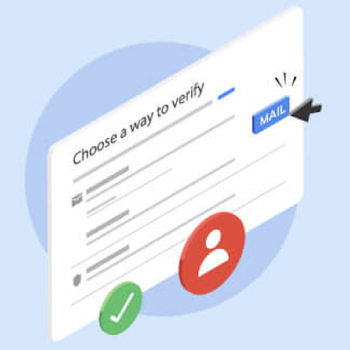
1. Log in to Google My Business and select the business you want to verify.
2. Verify your address and add a contact name and click ‘Send’.
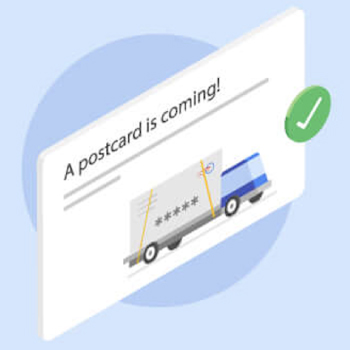
3. After the postcard arrives, login, open the business you want to verify and click ‘Verify Now’
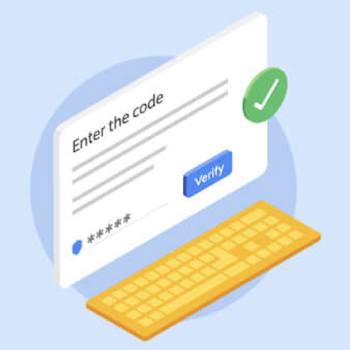
4. Enter the code from the postcard and click ‘Submit’
Verify your listing by phone
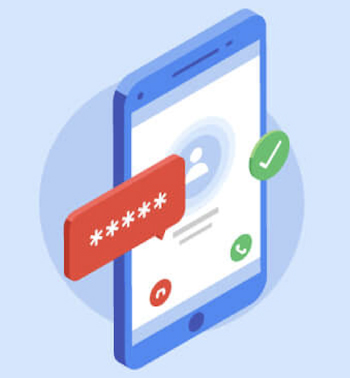
1. Log in to your Google My Business account and choose the relevant business, then click ‘Verify Now’.
2. To receive the code in an automated phone call, click ‘Verify by Phone’.
3. You will be given a code on the call, enter it on the website and click ‘Submit’.
Verify your listing by email
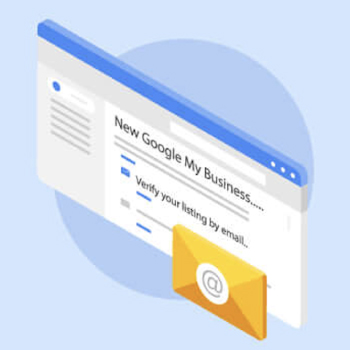
1. Log in to Google My Business and select the business you would like to verify and then click ‘Verify Now’.
2. Click Email from the list of options (if available, Google does not offer this method to all users).
3. You will receive an email from Google My Business asking to verify your business, click the ‘Verify’ button in the email.
Verify your listing by instant verification
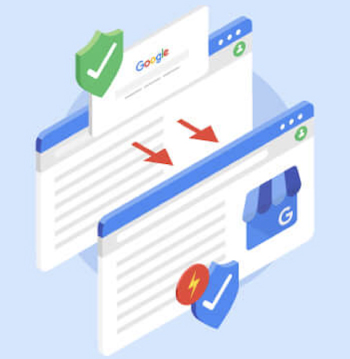
1. If your website is verified with Google Search Console, you may be able to verify your location instantly.
2. Make sure you are signed in with the same email address you use for Google Search Console and Google My Business before trying to verify.
Verify your listing by bulk verification
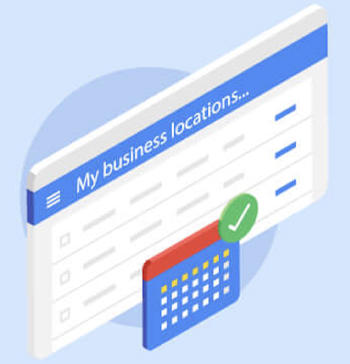
1. Log in to your Google My Business account and click ‘Get Verified’ next to one of your locations (you need more than 10 locations to qualify for bulk verification).
2. Click Chain and then fill in the verification form.
3. Verification should take about seven to ten days.
How to optimise your listing
1. Add key information to your profile

Address

Description

Website

Opening Hours

Phone
PRO TIP:


2. Create and add media to your business listing
Cover
A cover photo should showcase the purpose and personality of your business in just one photo.
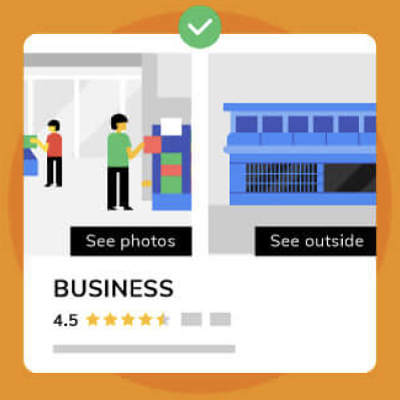
Exterior
If you have a physical space, include exterior shots from different angles to make it as easy as possible for customers/clients to find you.
Profile Image/Logo
Use your logo as a profile photo for readers to quickly identify your response to a review.
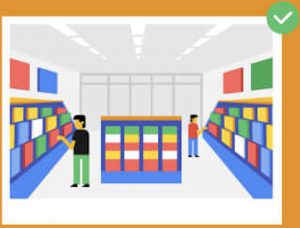
Interior
Choose your interior photos to give the best first impression – no messy desk/shelves.
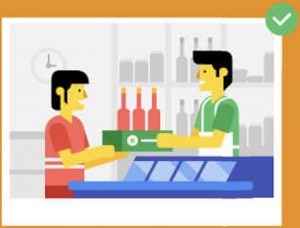
At Work
Show your staff serving and providing services to your customers and demonstrating your offering.

Team
Photos of your team, ensure you pick ones that fit the tone of your brand.

Product
Use these photos to highlight your most popular products.
PRO TIP: You can also add a 30-second video clip to highlight brand themes (they need to be 100MB or smaller and 720p resolution or higher).
How to get the most out of your listing

Check Back Frequently
Anyone can update a listing if they think the information is incorrect, so check your information is regularly.

Use the Q&A Feature
If you don’t answer questions, someone else might answer for you on your behalf. Include as many Q&A’s as possible.

Respond to Reviews
Thanking customers for positive reviews makes them stand out and encourages others. Be sure to respond positively to any negative reviews.
Write and Publish Posts
Posts can highlight upcoming events, sales, products, services and general news. Do this regularly as posts are only viewable for a limited time.
Use Messages
The text messaging service is a great way to quickly respond to queries. This feature is available via the Google MY Business mobile app.
Include Photos
Businesses with a selection of photos are far more engaging and receive 42% more requests for directions and information.
PRO TIP: Enabling the ‘Messages’ feature also enables the new ‘Get a Quote’ button on your listing and is displayed in your Knowledge Panel (the boxes on the right of search results). At the time of writing this, the feature is being rolled out to specific industry sectors so may not yet be available to everyone. To activate messages and the ‘Get a Quote’ button, you will need to download and install the Google My Business mobile app.

Google My Business is an essential tool for businesses of all shapes and sizes. It’s straight forward to set up, so why not try following the steps we’ve provided above to get up and running and make it easy and convenient for your local customers to find information about your business?
“Convenience is the only metric that matters”
This article was originally published on our Onward Digital Ltd website.