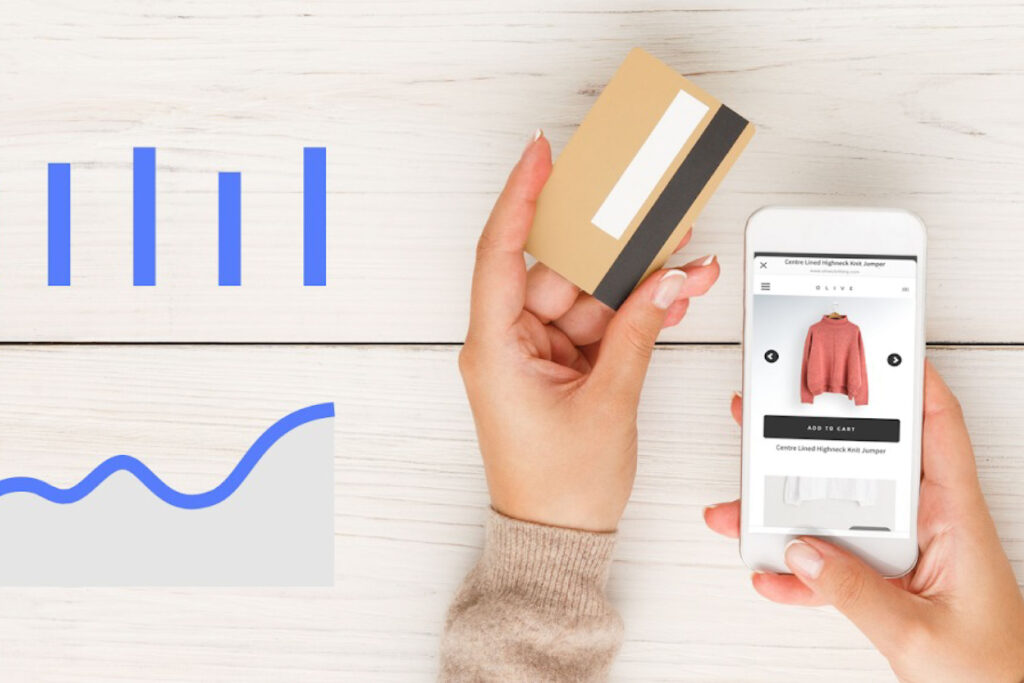
If you’re selling products online and want to attract more buyers, Google Shopping Ads can be a game-changer. Unlike text-based ads, Shopping Ads show customers exactly what they’re getting—image, price, product title—before they even click. It’s product advertising with the power of Google Search behind it.
But for many business owners, the setup can feel confusing. What’s a product feed? What’s a Merchant Centre? How much should you spend? This guide will walk you through everything you need to get started, even if you’ve never touched Google Ads before.
What Are Google Shopping Ads?
Google Shopping Ads display product listings directly in Google search results and the Google Shopping tab. Each ad includes a product photo, title, price, store name, and sometimes promotions or shipping info.
They’re designed for high-intent users—people who are ready to buy. According to Google’s official support documentation, these ads connect your inventory directly with customer searches, making them highly efficient for driving eCommerce sales.
Why Use Them?
Compared to standard search ads, Shopping Ads tend to have:
• Higher click-through rates (CTR) because they include images and pricing
• More qualified leads since shoppers can see product details up front
• Better return on ad spend (ROAS) when well-optimised
For owners of online shops, they’re one of the most effective ways to increase visibility and generate sales.
What You Need Before You Start
Setting up Google Shopping Ads requires a few tools and accounts in place:
1. Google Merchant Center Account
This is where your product data (product name, price, description, image, etc.) is uploaded and stored. You can create an account at merchants.google.com.
2. Verified Business Website
Google requires that your website be verified and claimed in your Merchant Center account. You’ll also need clear shipping, returns, and contact information. Read Google’s site requirements for full details.
3. Product Feed
A product feed is a spreadsheet or automated file that lists all your products and their attributes (e.g. title, description, price, availability). You can upload this manually or use plugins that connect your eCommerce platform to Merchant Center—like those offered by Shopify or WooCommerce.
Google provides full guidance on product data requirements here.
4. Google Ads Account
You’ll need to link your Merchant Center account to a Google Ads account. This lets you run campaigns using the product data you’ve uploaded.
5. Conversion Tracking (Recommended)
Set up Google Ads conversion tracking so you can monitor which clicks turn into sales. This helps you optimise future campaigns more effectively.
Step-by-Step: Setting Up Your First Shopping Campaign
Once your setup is complete, here’s how to launch your first campaign:
Step 1: Create a New Campaign
Log into your Google Ads account. Click “New Campaign” and choose your goal—“Sales” is usually the best fit for Shopping.
Then, select “Shopping” as the campaign type.
Step 2: Choose a Campaign Subtype
You’ll have two main options:
• Standard Shopping Campaign: Gives you more control over targeting, bidding, and product group segmentation.
• Performance Max Campaign: Uses automation to place ads across all Google properties (Search, YouTube, Gmail, Discover), often good for beginners or time-strapped owners.
Read more about the difference on Google Ads Help.
Step 3: Select Your Product Feed
Google Ads will pull product data from your linked Merchant Center feed. You can segment products using “custom labels” or groupings based on brand, category, or price.
Step 4: Set Your Budget and Bidding
You can choose to:
• Set a daily budget (e.g. £10/day)
• Choose a bidding strategy, such as:
• Maximise Clicks
• Maximise Conversion Value
• Target ROAS (return on ad spend)
If you’re just starting out, “Maximise Clicks” can help gather initial data.
Step 5: Refine Your Targeting
Define your target locations, language, and devices. Make sure your shipping settings in Merchant Center align with your ads’ geographic reach.
Step 6: Launch the Campaign
Once everything’s set, submit your campaign for review. It usually takes 24–48 hours for Google to approve and start serving your ads.
Tips to Optimise Your Shopping Ads
Launching your ads is just the beginning. Here’s how to improve results over time:
Keep Product Data Accurate
Make sure pricing, availability, and stock levels are up to date. Mismatches between your site and product feed can lead to disapprovals or wasted clicks.
Write Clear Product Titles & Descriptions
Use keywords your audience is likely to search for. A strong title might include brand, colour, size, or key features. See Google’s advice on optimising product titles.
Use High-Quality Images
Good product photos are essential. Google prefers clear, well-lit images with a white background and no watermarks or text overlays.
Monitor Performance Regularly
Use the “Search terms” report to see what people are actually searching for—and add negative keywords to avoid irrelevant clicks. Adjust bids on best-performing products and pause ads that underperform.
Common Mistakes to Avoid
Even with the best intentions, a few errors can derail your Shopping campaigns:
• Poor feed quality: Incomplete or inaccurate product data leads to disapprovals.
• Unrealistic budgets: If your budget is too low, your ads won’t gather enough data to optimise.
• No conversion tracking: Without it, you’ll struggle to understand which ads are actually driving sales.
• Set and forget: Campaigns need regular checks and tweaks to stay effective.
Final Thoughts
Google Shopping Ads offer a powerful way to get your products in front of customers who are actively searching to buy. While setting them up requires a bit of initial effort—like creating a Merchant Center account, uploading a high-quality product feed, and linking everything to Google Ads—the long-term potential for sales and visibility is well worth it.
By taking the time to understand how product data, bidding strategies, and campaign settings work together, you’ll be better equipped to make informed decisions and avoid common pitfalls. And once your campaigns are live, ongoing optimisation—such as refining your product titles, monitoring performance, and adjusting bids—can make a significant difference to your return on ad spend.
Whether you’re just getting started or looking to sharpen your approach, building a solid foundation from the beginning will set you up for better results with less frustration.